Brand Profile
Teach Zoviz your brand once — every generation matches it. Three short steps, a completion meter, and nothing locked in.
What it is
Your Brand Profile is where Zoviz learns what your brand actually is: what you do, who you talk to, and how you sound. Every answer tunes what Zoviz creates for you — social posts, marketing copy, images, and videos come out matched to your business instead of generic. As the page itself puts it, each answer tunes what Zoviz creates for your business, and saved changes apply to everything Zoviz makes from now on.
It is different from About Your Brand, which stores the contact details (name, phone, links) that auto-fill your templates. The Brand Profile shapes what the AI creates; About Your Brand fills in what the templates display. zoviz.com describes the Brand Profile as also saving your colors and fonts. The profile form documented below (checked 2026-09-11) has no color or font fields; in the app you change colors and fonts in the logo editor and with Brand colors on the Brand Dashboard. The form itself covers what you do, your audience, and your voice. (The profile's Web Presence step asks for links and phone numbers too, but those tune the content Zoviz suggests; the details your templates print still come from About Your Brand.)
Every brand has its own profile. The dashboard shows the selected brand's completion as a ring on the brand card, with Continue brand profile to open it; with no brand selected, the dashboard's profile card offers Start brand profile / Continue brand profile instead.
Where to find it
Dashboard → Brand Profile in the sidebar (the Brand Dashboard sidebar lists Brand Profile too), the Continue brand profile button on the dashboard's brand card, or go directly to zoviz.com/app/dashboard/profile-concept.
- With a brand selected in the top bar, its profile opens straight away; the brand name and its pack label (for example Full Brand Kit) show at the top right, with a dropdown to switch.
- With No Brand selected, the page asks you to Select brand first — a picker of all your brands with their pack labels (Free, Basic Logo Pack, Full Brand Kit, Elite Kit). Choosing one opens that brand's profile and also switches the top-bar brand to it.
- Create new profile (top right) opens the same picker: choose a brand that has no profile yet and Zoviz starts one for it, pre-filled with the brand's name.
The three steps
The profile is a three-step form — Identity, Voice & tone, Web Presence — with a step line that ticks off completed steps (a step still in progress shows its percentage instead) and Your profile is N% complete underneath. Move with Next and Back; Save changes stores what you have so far. Skip anything you are unsure about and add it later.
Identity — "Tell us about your business"
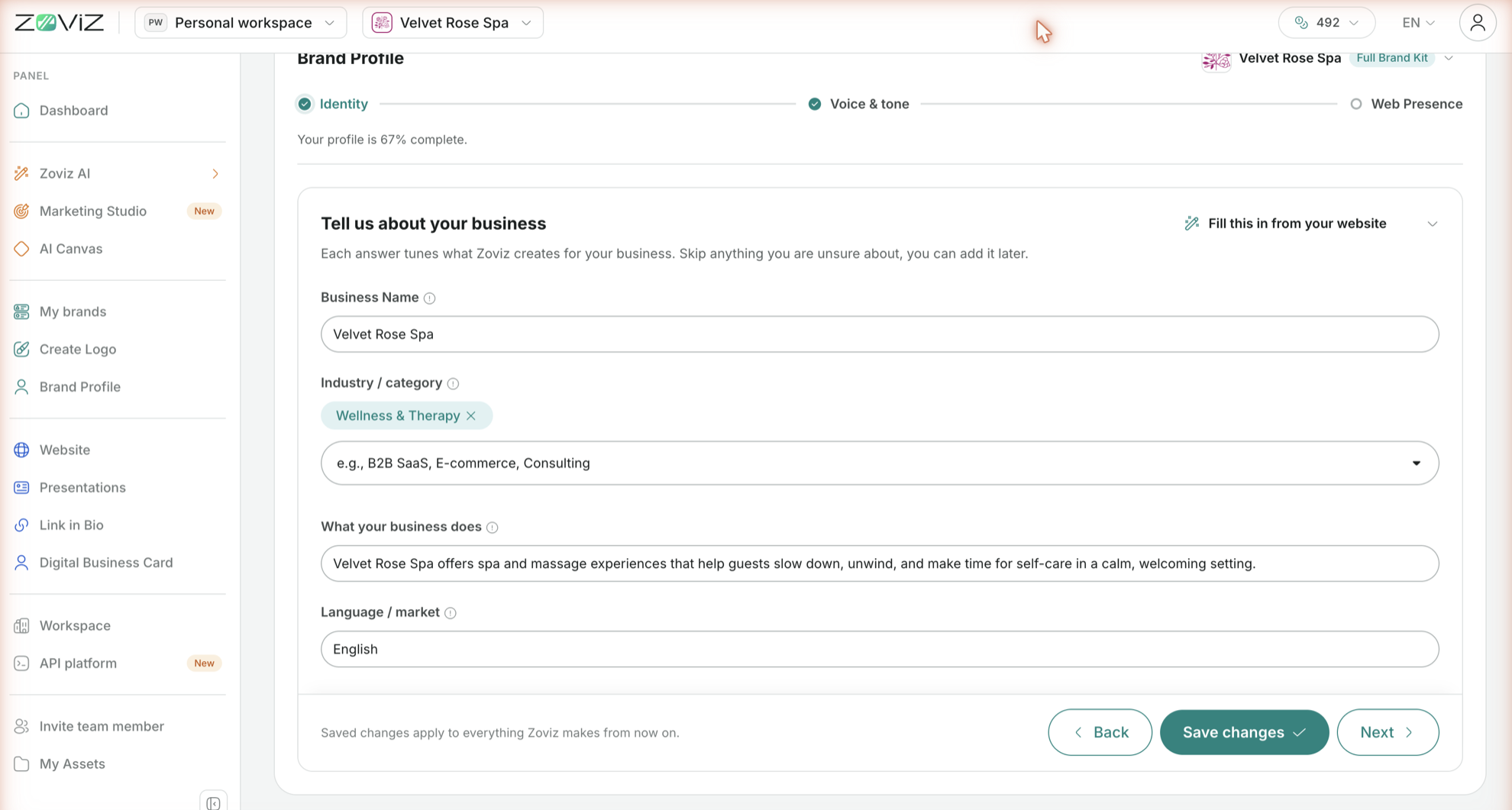
| Field | What to enter |
|---|---|
| Business Name | "The name Zoviz puts on everything it makes, from logos to captions." |
| Industry / category | Pick a category from the list (for example Wellness & Therapy, Technology & Software); it shows as a removable chip |
| What your business does | "One line on what you offer. Zoviz leads with this and pushes what makes money." Example placeholder: Boutique design agency, SaaS for restaurants |
| Language / market | Your language and market, for example English (US) |
Fill this in from your website sits at the top of this step: paste your site address and press Auto-fill — Zoviz reads your brand details from the site and drafts the fields, and you can edit everything afterwards.
Voice & tone — "Voice & communication"
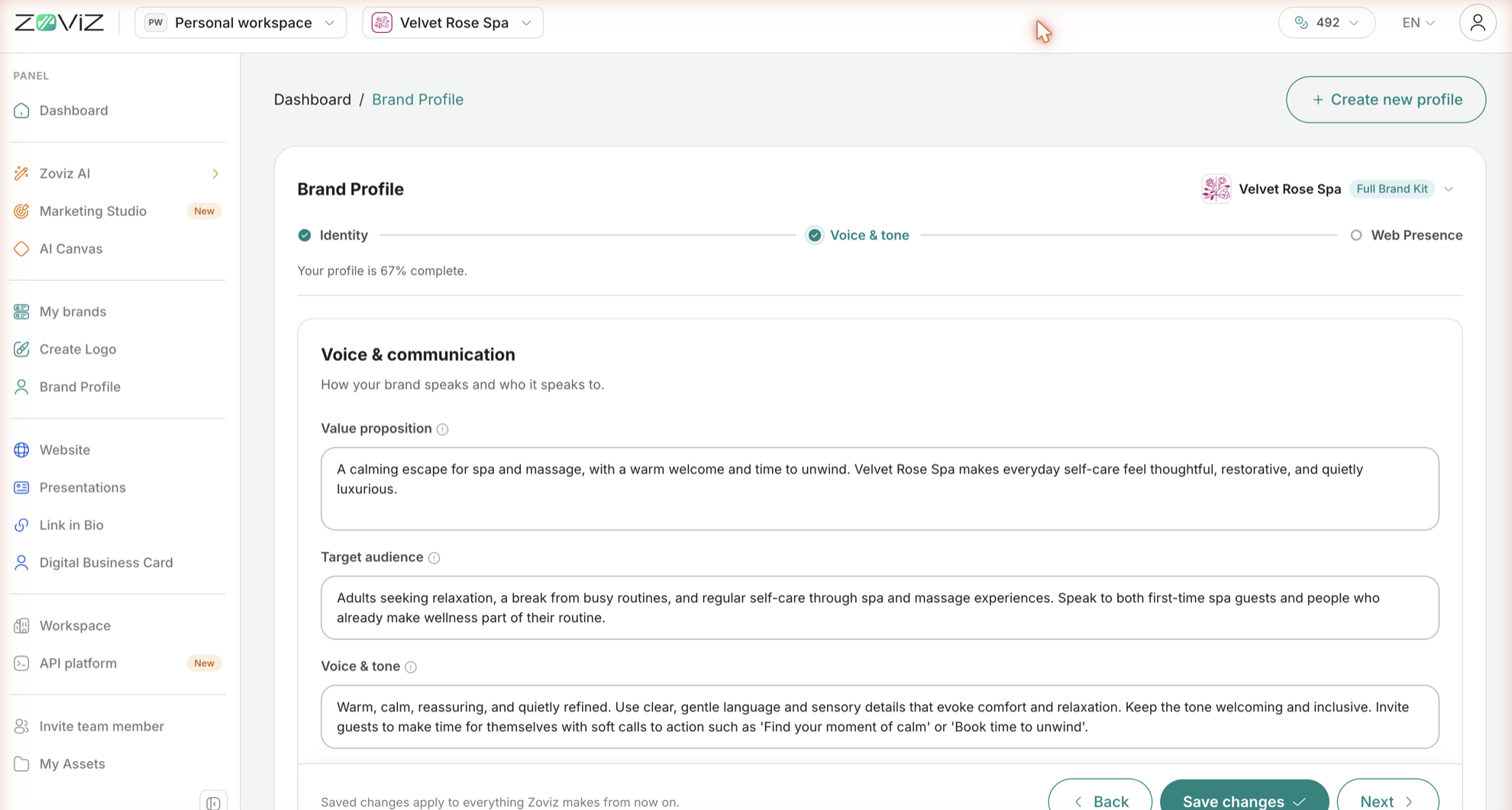
How your brand speaks and who it speaks to:
| Field | The field's own hint |
|---|---|
| Value proposition | "The single most important reason someone should choose you." |
| Target audience | "Be specific — 'early-stage B2B founders' beats 'businesses'." |
| Voice & tone | "Adjectives that describe how you communicate." |
| Content pillars | "Recurring themes you build your brand around." Each pillar is a title plus a description; × removes a pillar and + Add another adds one |
Web Presence — "Website & social presence"
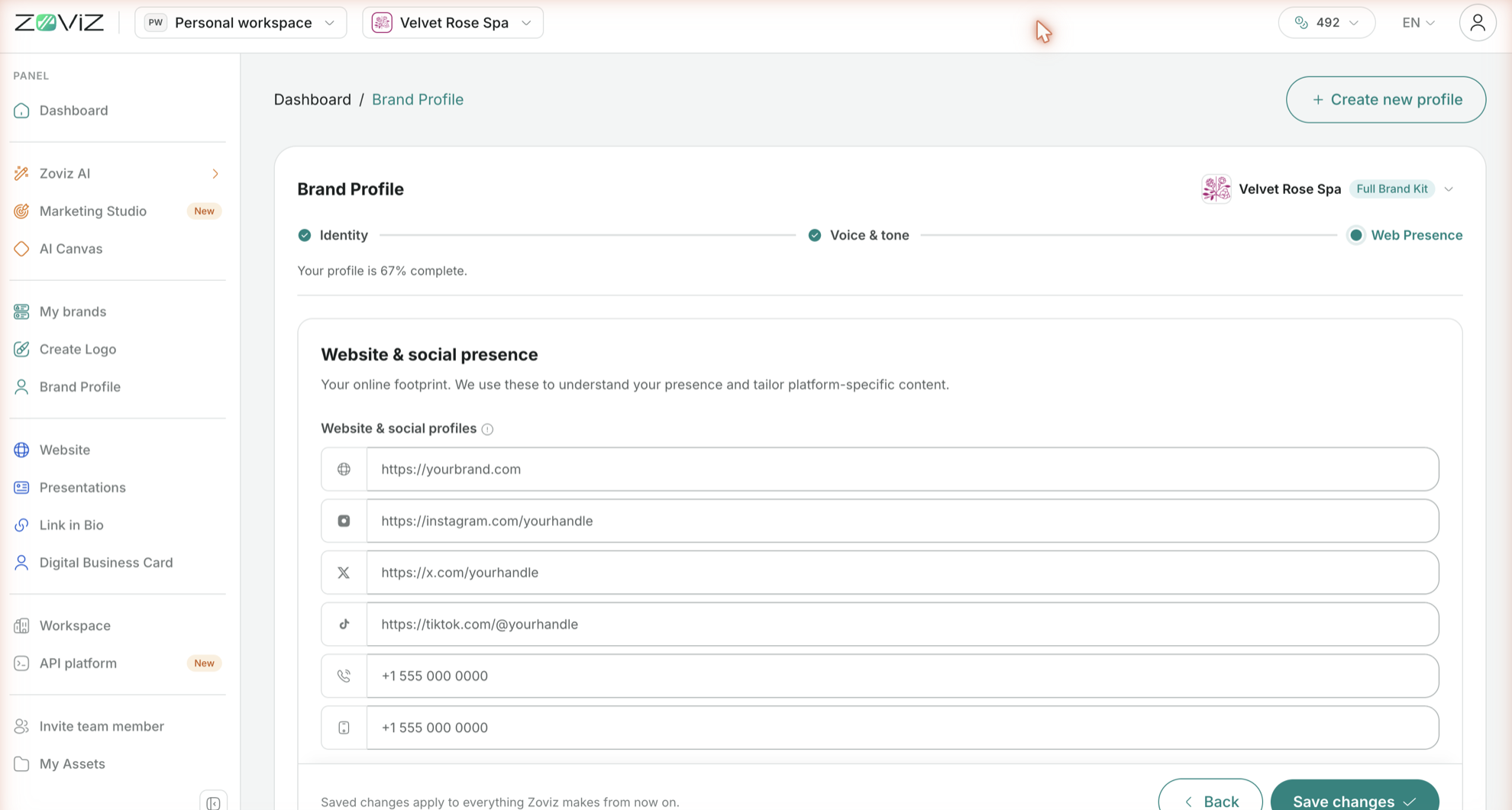
Your online footprint — Zoviz uses it to understand your presence and tailor platform-specific content. One field each for your website, Instagram, X, and TikTok links, plus two phone numbers. The hint on this step: "Add your website, social profiles, and phone numbers. These help us suggest platform-appropriate content." This is the last step, so the footer has Save changes and Back only.
Editing later
Your profile is never final. Open Dashboard → Brand Profile, pick the brand (or switch it with the dropdown at the top right of the form), change any answer — rebranding, new audience, new tone — and Save changes. In the page's own words, saved changes apply to everything Zoviz makes from now on.
Tips
- Five minutes here pays off in every tool: the completion ring on the dashboard shows how much is still empty.
- Be concrete in What your business does — "handmade ceramic tableware for restaurants" tunes results far better than "e-commerce".
- Be specific in Target audience, as the field itself says: "early-stage B2B founders" beats "businesses".
- Set Language / market to the language and region your customers are in; generated content follows it.
- Have a website? Start with Fill this in from your website, then correct the draft — it's faster than typing from scratch.
Related
- Your dashboard — the brand card and its completion ring
- About Your Brand
- Create your first brand
- Marketing Studio
Still stuck? Contact Zoviz support or ask Zoviz.