The logo album
Choose and shortlist your logo: filter designer-drawn concepts, preview colorways, bookmark favorites to your Wishlist, and reopen past albums from History.
What it is
After the Logo Maker wizard, Zoviz opens your album: a page of logo concepts drawn for your business name. The heading says who made them — Logos for [your brand], drawn by human designers — and what every concept comes with: every file type, editable any time, and a complete Brand Kit. Print it, stitch it, trademark it.
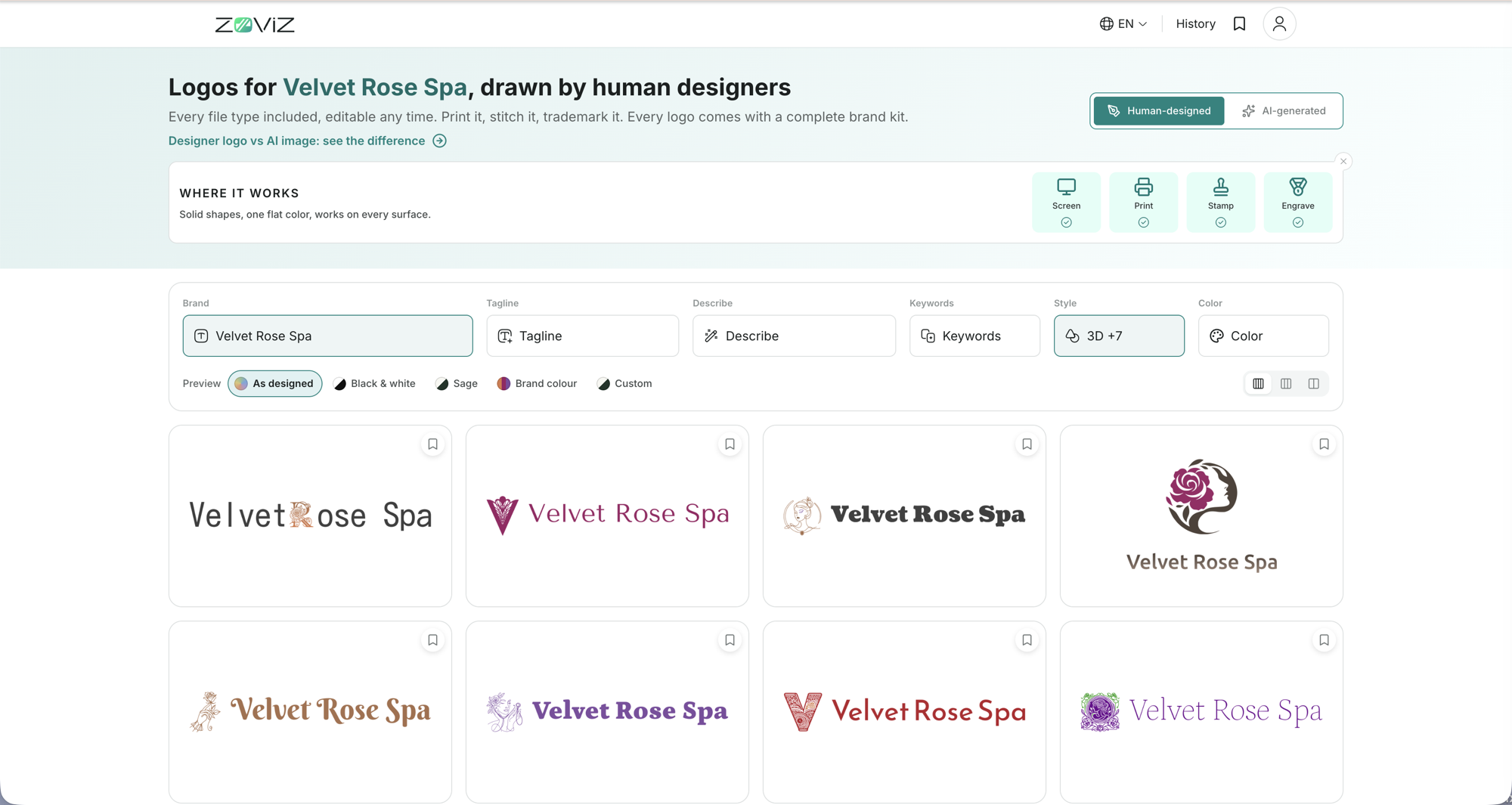
Pick a concept here and it becomes the anchor of your Brand Kit — colors and fonts are derived from it, and it flows into every asset you create.
Where to find it
| Surface | Where |
|---|---|
| Panel | Create Logo → enter your brand name and details → the album opens |
| Album top bar | History reopens any previous album; the bookmark icon opens your Wishlist |
| zoviz.com | Home page → Design My Brand (or the Logo maker page, /logo-maker) → the wizard → the album |
What it costs
Browsing the album and picking a designer logo are free — shortlist, preview, and compare as much as you like without spending AI Credits. The one exception is the optional AI-generated mode: your first AI concept is free, and each one after that uses 1 AI Credit. Downloading final, high-resolution logo files requires an unlocked brand (Upgrade Your License).
Every part of the page
Top to bottom, here is what each part does.
Human-designed or AI-generated
The switch in the top-right corner chooses which kind of logo the album shows:
| Mode | What you get | Best for |
|---|---|---|
| Human-designed (default) | Vector logos composed from icons drawn by real designers — every file type, editable any time, included with your brand | Anything you'll print, stitch, engrave, trademark, or edit later |
| AI-generated | A rendered image with 3D, gradients, and depth a flat logo can't give you | Screens only — social, web, and apps |
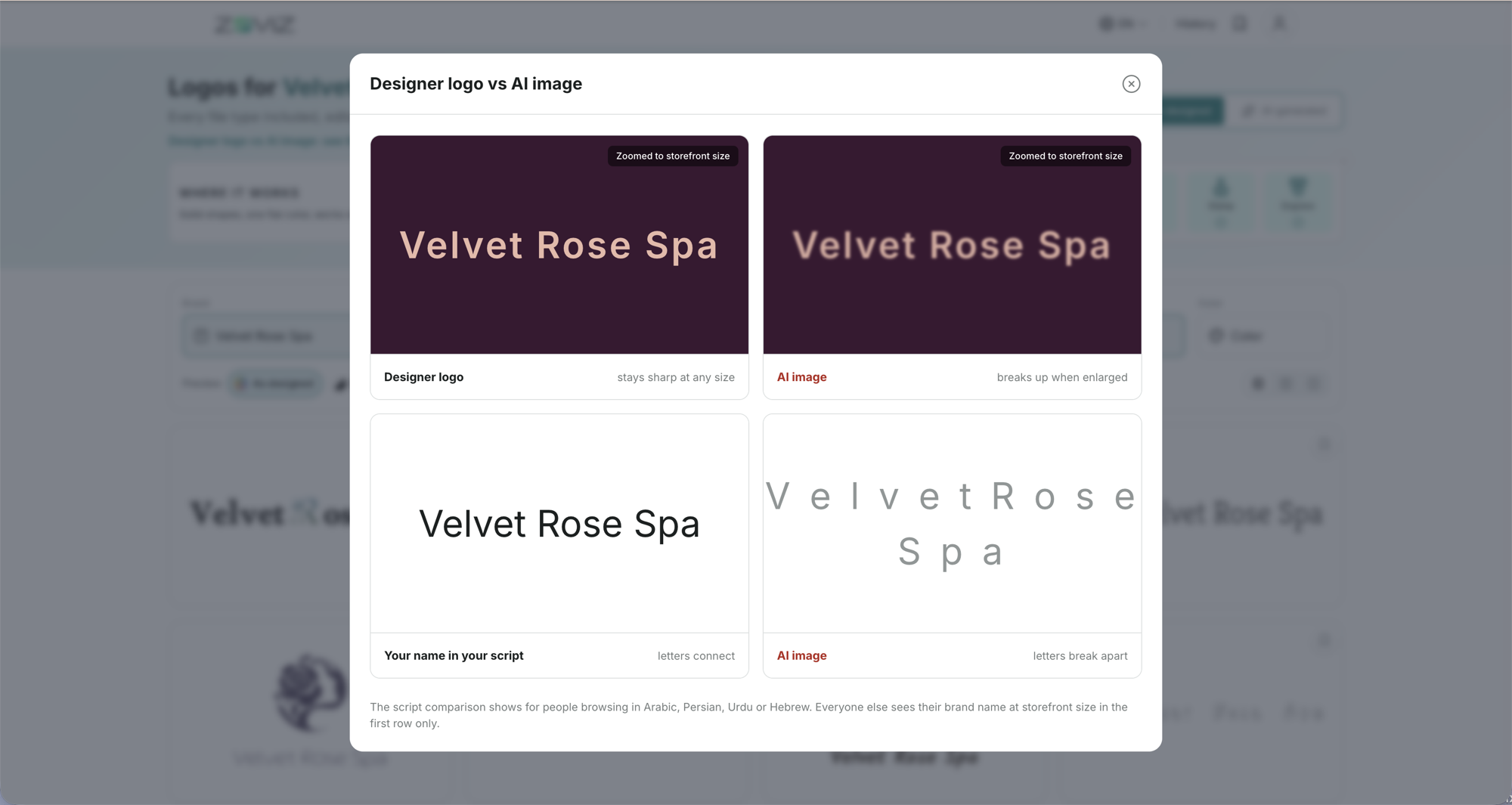
Not sure which you need? The Designer logo vs AI image: see the difference link under the heading shows your name both ways, zoomed to storefront size: the designer logo stays sharp at any size, while the AI image breaks up when enlarged. If you browse in Arabic, Persian, Urdu, or Hebrew, a second row shows the other reason — in a designer logo the letters of your script connect; in an AI image they break apart.
Where it works
The strip under the heading is a quick fitness check for the current mode across four surfaces: Screen, Print, Stamp, Engrave. Designer logos are solid shapes in one flat color, so all four are ticked — they work on every surface. AI-generated concepts are ticked for Screen only. Once you've read it, close the strip with the ×.
The filter bar
Change anything here and the album refreshes with new concepts:
| Control | What it does |
|---|---|
| Brand | Your business name — rename it and every concept updates |
| Tagline | Add a slogan and the concepts render with it |
| Describe | Say what the icon should show, in plain words |
| Keywords | Steer the symbols used in the icons |
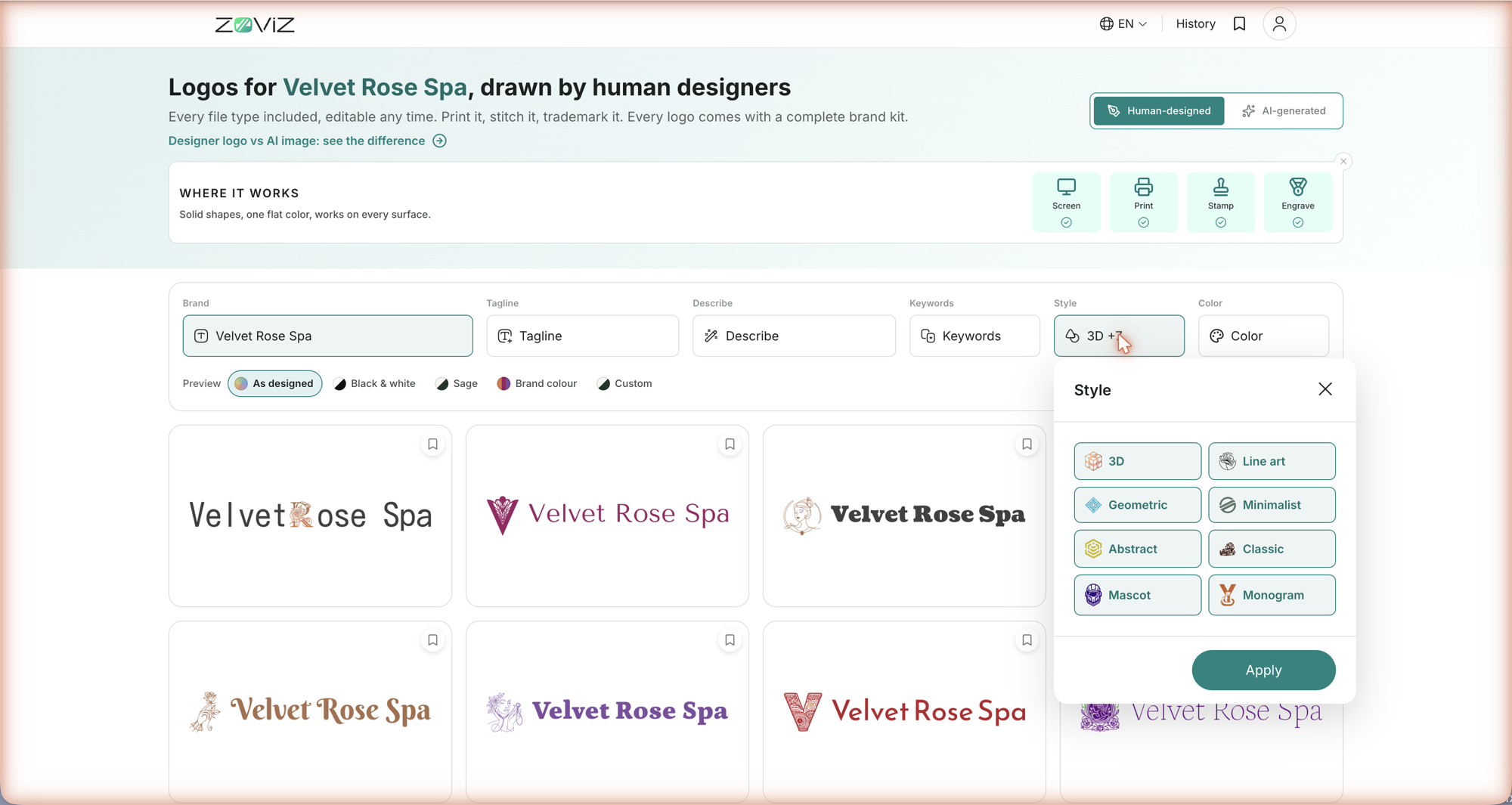
| Style | Tick any mix of 3D, Line art, Geometric, Minimalist, Abstract, Classic, Mascot, Monogram, then Apply |
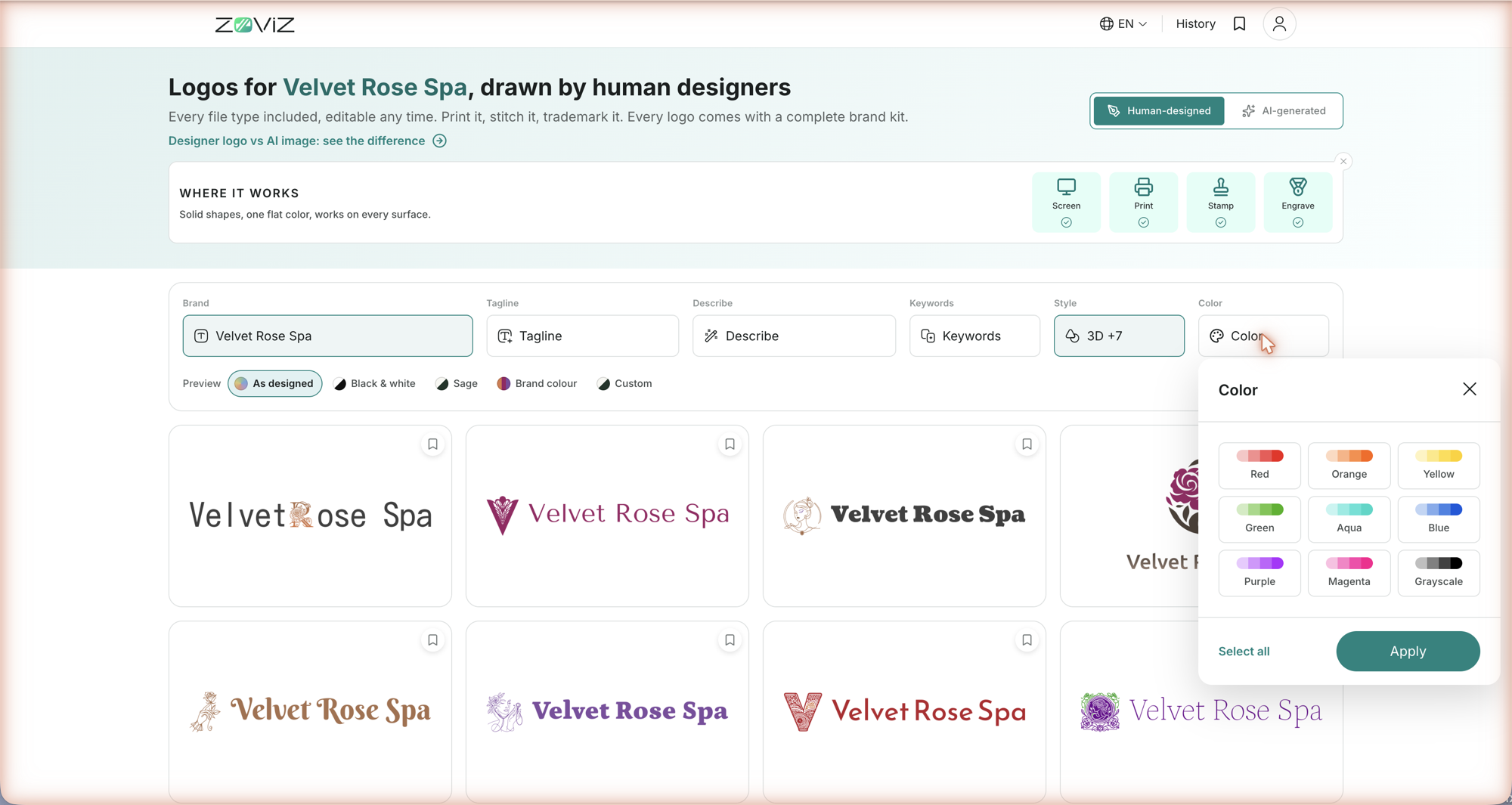
| Color | Tick color ranges — Red, Orange, Yellow, Green, Aqua, Blue, Purple, Magenta, Grayscale — or Select all, then Apply |
Preview colorways
The Preview row recolors every concept at once, so you compare shapes instead of being swayed by color. It only changes the preview — final colors are set in the editor.
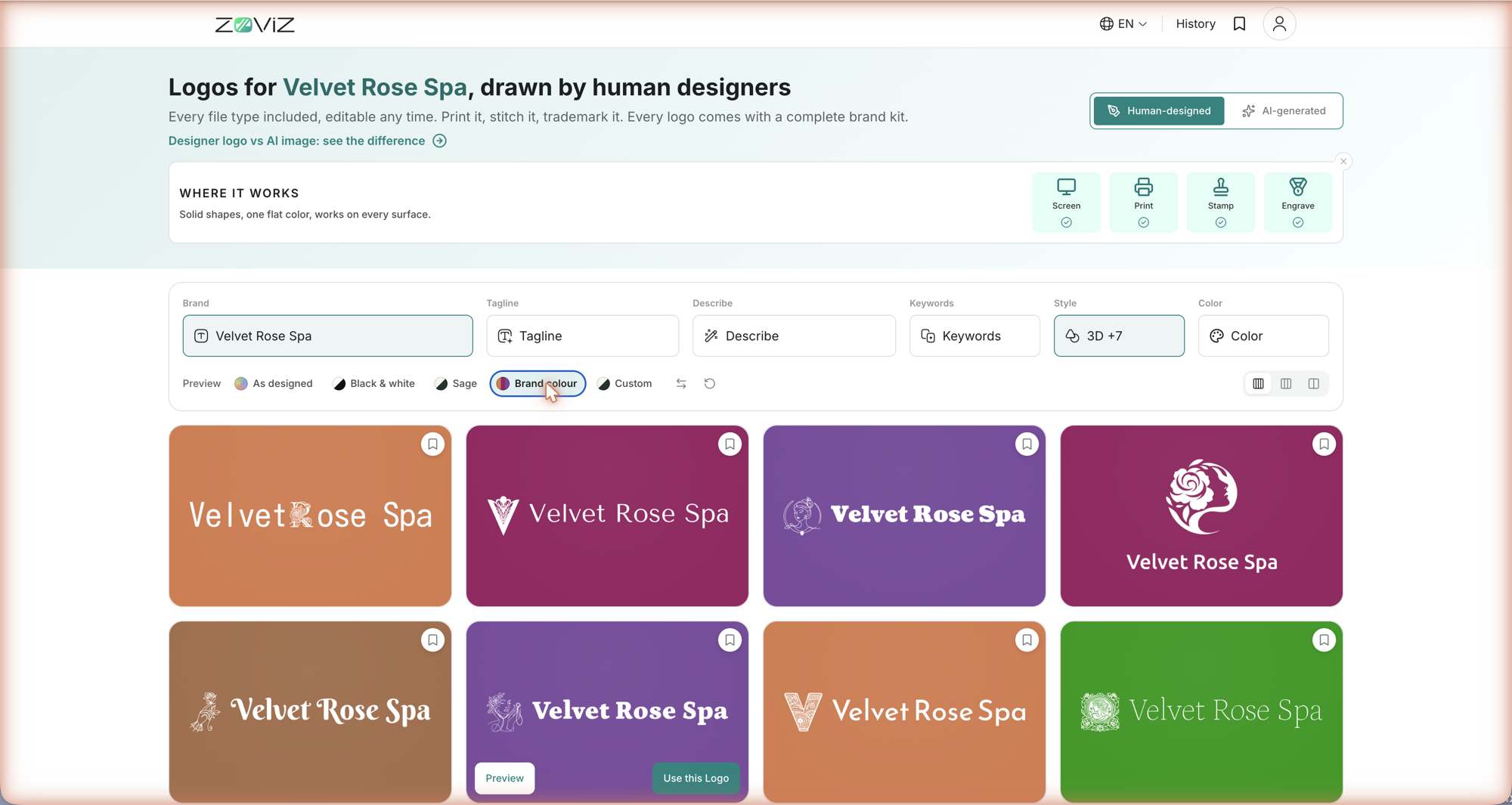
- As designed — each logo in its own colors on a white card, exactly as the designer drew it.
- Black & white — black on white, the honest test of a logo's shape.
- Sage — one soft, natural pair applied to everything.
- Brand colour — the reverse: each card fills with the colour that logo was designed around, and the logo turns white — how it looks on a sign or packaging in its own colour.
- Custom — your own two colors (background and logo). Swap them with ↔, reset with ↺.
At the right end of the row, the grid toggle switches between a four-column overview and a two-column view with bigger logos.
The concept cards
- The bookmark in a card's corner saves it to your Wishlist — shortlist as many as you like and compare them before deciding. Open the Wishlist from the bookmark icon in the top bar.
- Hover a card for two buttons: Preview opens the concept in detail; Use this Logo picks it straight away.
- Keep scrolling — the album loads more concepts as you go, so there's no "next page".
One concept in detail
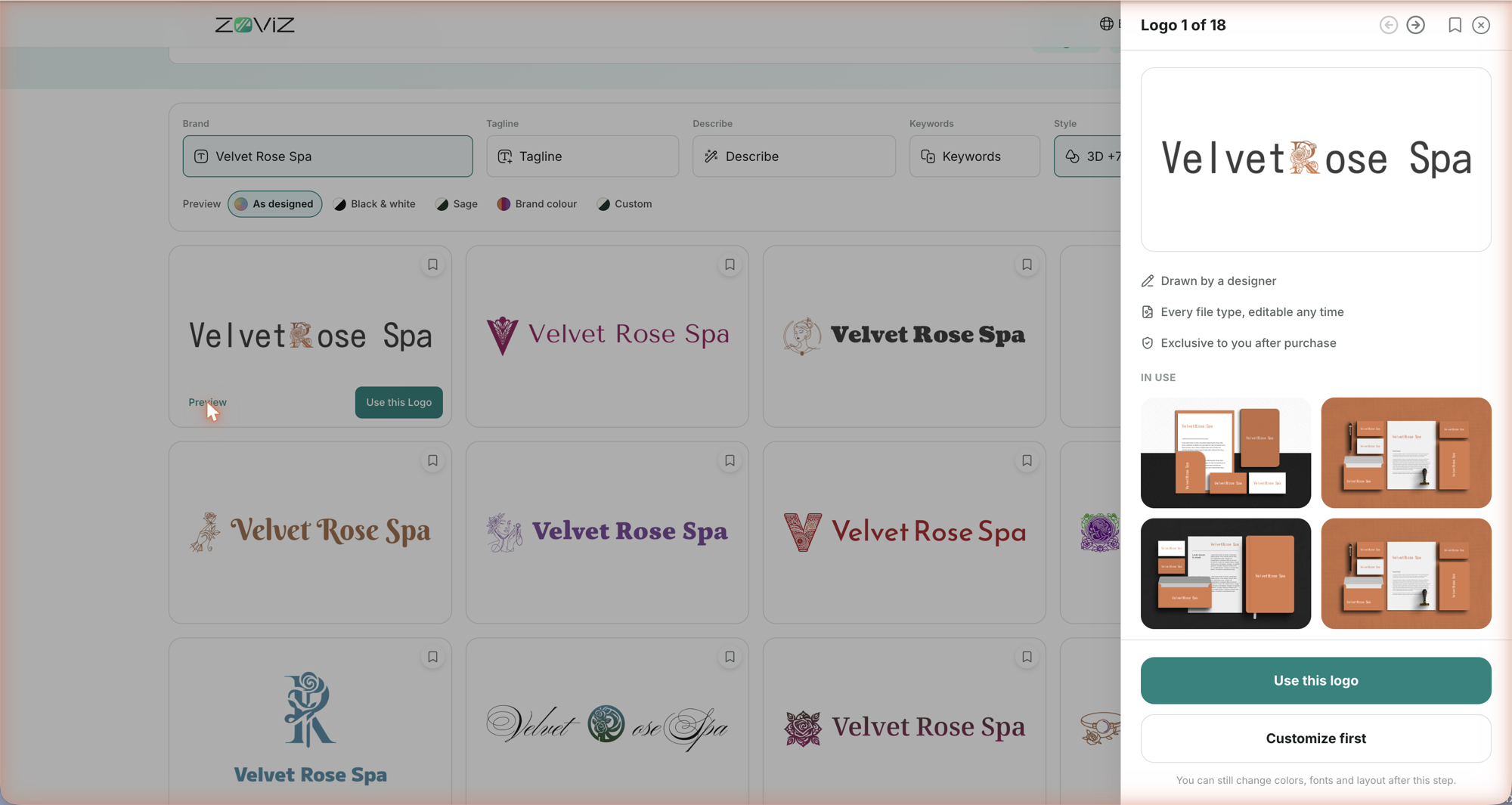
Preview opens a panel for a single logo. Arrows step to the previous and next concept (the counter shows where you are in the set), the bookmark saves it, and × closes.
What you'll see:
- Three promises — Drawn by a designer, Every file type, editable any time, Exclusive to you after purchase.
- In use — the logo on real mockups, so you can judge it at the size people will actually see it.
- Included in the brand kit — business card, email signature, favicon and app icon, letterhead, social profile kit, and brand colors and fonts, all built around this logo.
- Two ways forward: Use this logo takes the concept as-is; Customize first opens it in the logo editor. Either way, you can still change colors, fonts, and layout after this step.
Two helpers you'll meet along the way
- Personalize your logos. Zoviz may ask What type of profile is this? — Business, Personal, Creator, or Product. Answer and choose Get better logos to tailor the styles and layouts to your needs, or Skip to keep browsing.
- History (top bar) lists your previous albums, so you can pick up where you left off without re-entering anything.
AI-generated concepts
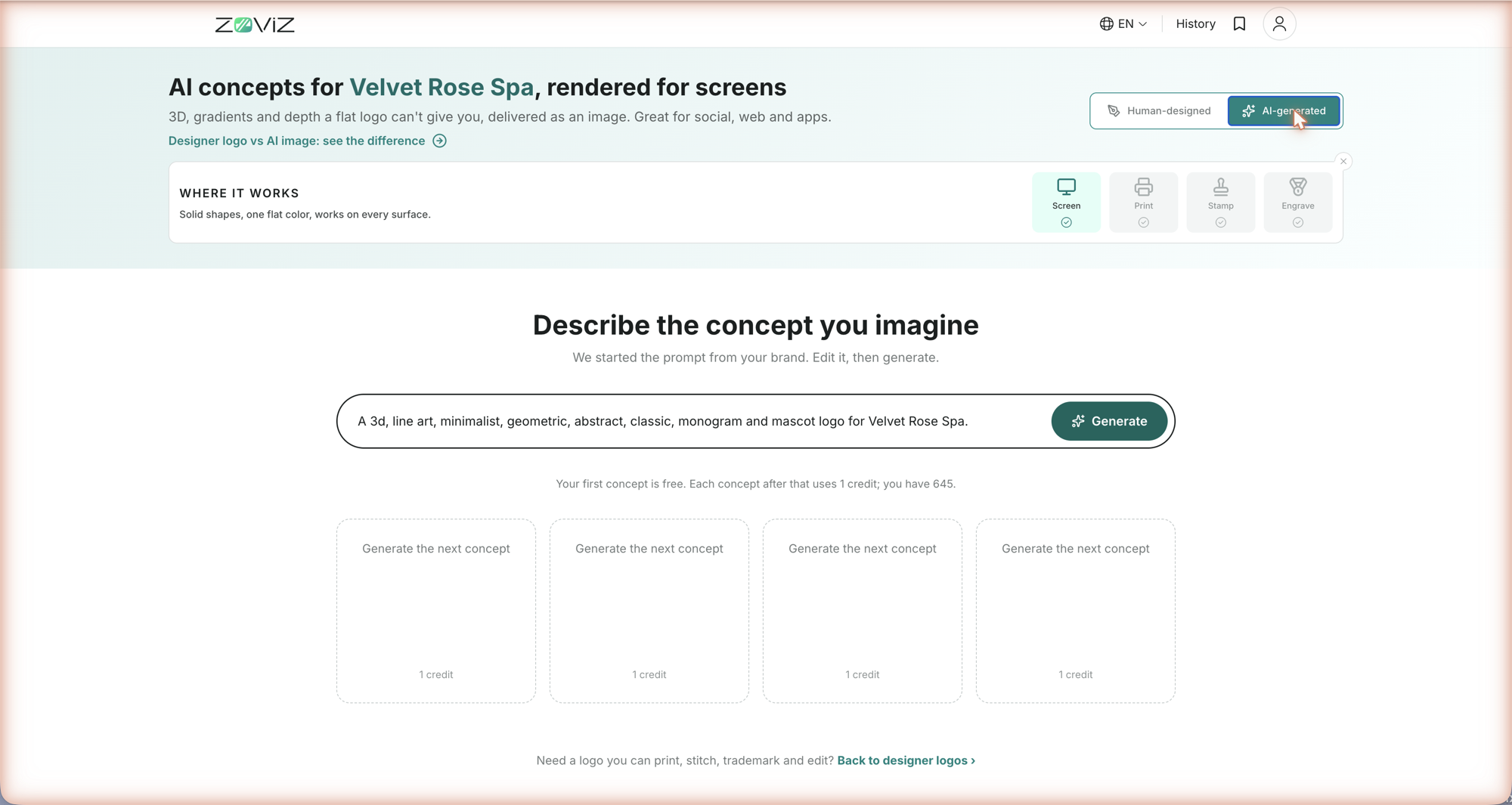
Switch to AI-generated and the page becomes AI concepts for [your brand], rendered for screens. Zoviz starts a prompt from your brand name and the styles you ticked — edit it, then Generate. Your first concept is free; each concept after that uses 1 AI Credit, and the page shows your remaining balance. Each result is an image, so only the Screen box is ticked under Where it works: great for social profiles, web, and apps, but not for print, embroidery, or a trademark filing. Need a logo you can print and edit? Back to designer logos at the bottom of the page returns you to the album.
Tips & limits
- Shortlist, then decide. Bookmark candidates to your Wishlist and compare them in the Black & white preview — a logo that works without color works everywhere.
- Print or screen? If your logo will ever go on a sign, packaging, embroidery, or a trademark filing, stay in Human-designed — AI-generated concepts are images made for screens.
- Not seeing the right thing? Change the Describe text or Keywords as well as the Style and Color filters — every change refreshes the album with new concepts.
- Nothing is final here. Whatever you choose, colors, fonts, and layout stay editable in the logo editor and from the Brand Dashboard later.
Related
- Logo Maker — the wizard before the album
- The logo editor — what Customize first opens
- Your logo files — every color version, layout, and download option
- What's designed by humans, what's AI — why designer logos and AI concepts differ
- Create your first brand — the full setup walkthrough
Still stuck? Contact Zoviz support or ask Zoviz.