Your dashboard
The Panel's home page: ask Zoviz what to make, jump to any tool, and keep your brand profile moving — it looks different until you have a brand.
What it is
The dashboard is the home of the Panel — the account-level side of Zoviz. It lives at zoviz.com/app/dashboard, and everything on it acts on the workspace and brand shown in the top bar: pick a tool and your logo, colors, fonts, and brand details are applied automatically.
It is not the same page as the Brand Dashboard, which is one brand's home (its kit grid, assets, and license). Think of this dashboard as where do I start? and the Brand Dashboard as everything about this one brand.
The top bar
| Control | What it does |
|---|---|
| Workspace switcher | Shows your current workspace (Personal, or a Team workspace). Open it to switch, Create Workspace, or jump to Manage workspaces, Members, Billing & invoices, and Workspace settings — see Workspaces |
| Brand switcher ("My brands") | The brand every tool will use. Lists your brands with their pack (Basic Logo Pack, Elite Kit…), a No Brand option, Create New, and Manage brand profiles — see My Brands |
| Credits | Your AI Credits balance for this workspace — a Team workspace has its own balance |
| Language and account | UI language; your account menu |
An Unlock Pro button can also appear in the top bar (seen in a Team workspace with no credits) — what it offers isn't covered here yet.
The sidebar
Under the PANEL heading, from top to bottom:
- Dashboard — this page.
- Zoviz AI (expands to the AI tools: AI video generator, Text to image, Background Remover, and more), Marketing Studio, AI Canvas.
- My brands, Create Logo, Brand Profile.
- Website, Presentations, Link in Bio, Digital Business Card.
- Workspace (Personal workspace only — not shown in a Team workspace), API platform.
- Invite team member, My Assets, Account setting, Affiliate program, Customer club.
The button at the very bottom collapses the sidebar.
With a brand selected
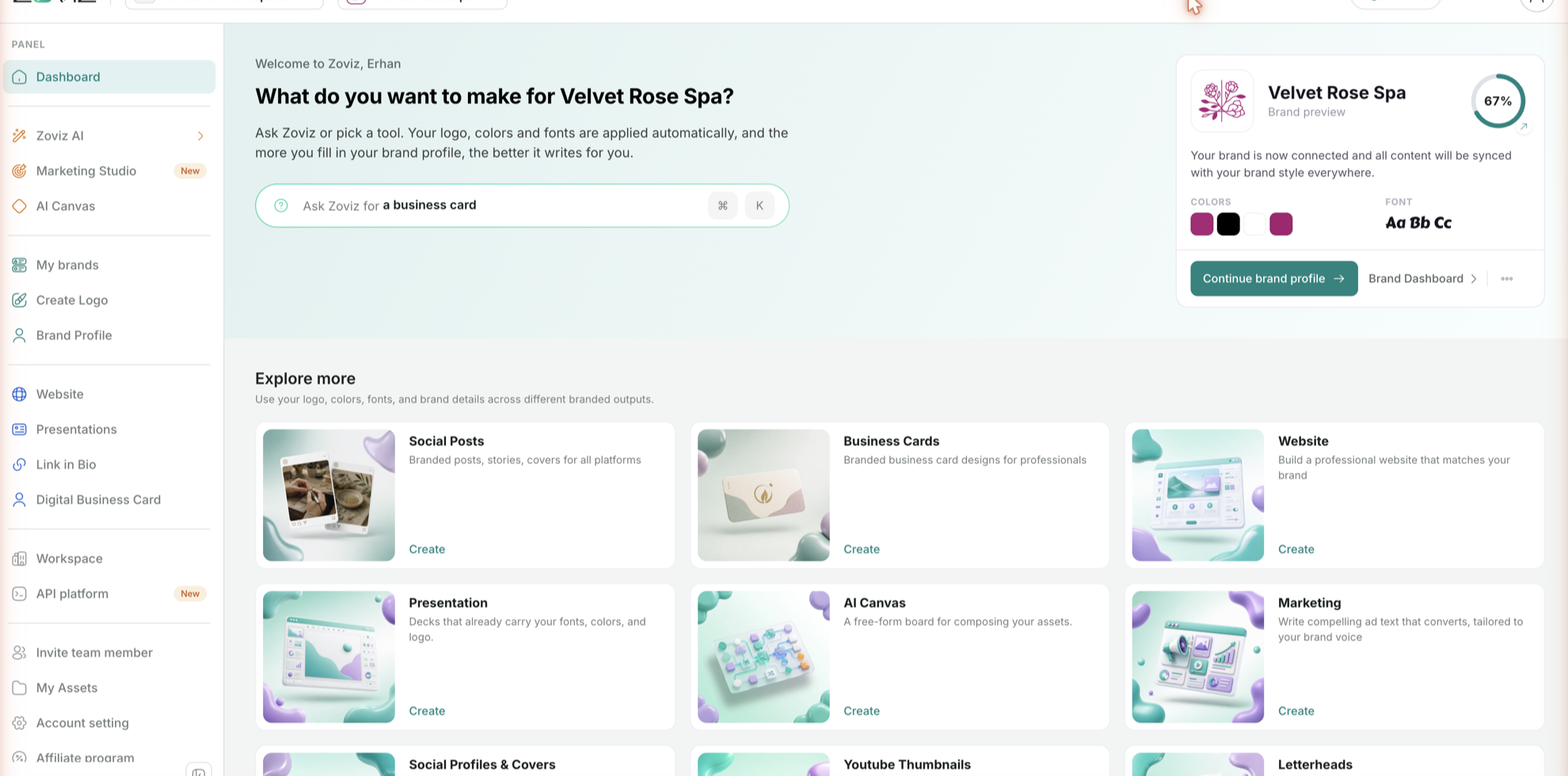
The hero asks What do you want to make for [your brand]? and offers two ways to answer:
- Ask Zoviz — type what you need (the placeholder cycles through ideas like a social post, a YouTube thumbnail, a presentation); in the product's words it opens the right tool, with your logo, colors, and fonts applied automatically. The box shows a ⌘ K shortcut badge.
- Pick a tool from the grids below.
On the right, the brand card shows the selected brand's logo, name, colors and font, and a completion ring for its Brand Profile — the more of the profile you fill in, the better Zoviz writes for you. From the card: Continue brand profile, Brand Dashboard, and a ⋯ menu with Customize (opens the logo editor), Share, Upgrade Your License, and Transfer brand (not covered here yet).
Without a brand
You see this version when the brand switcher is set to No Brand, or in a workspace that has no brands yet.
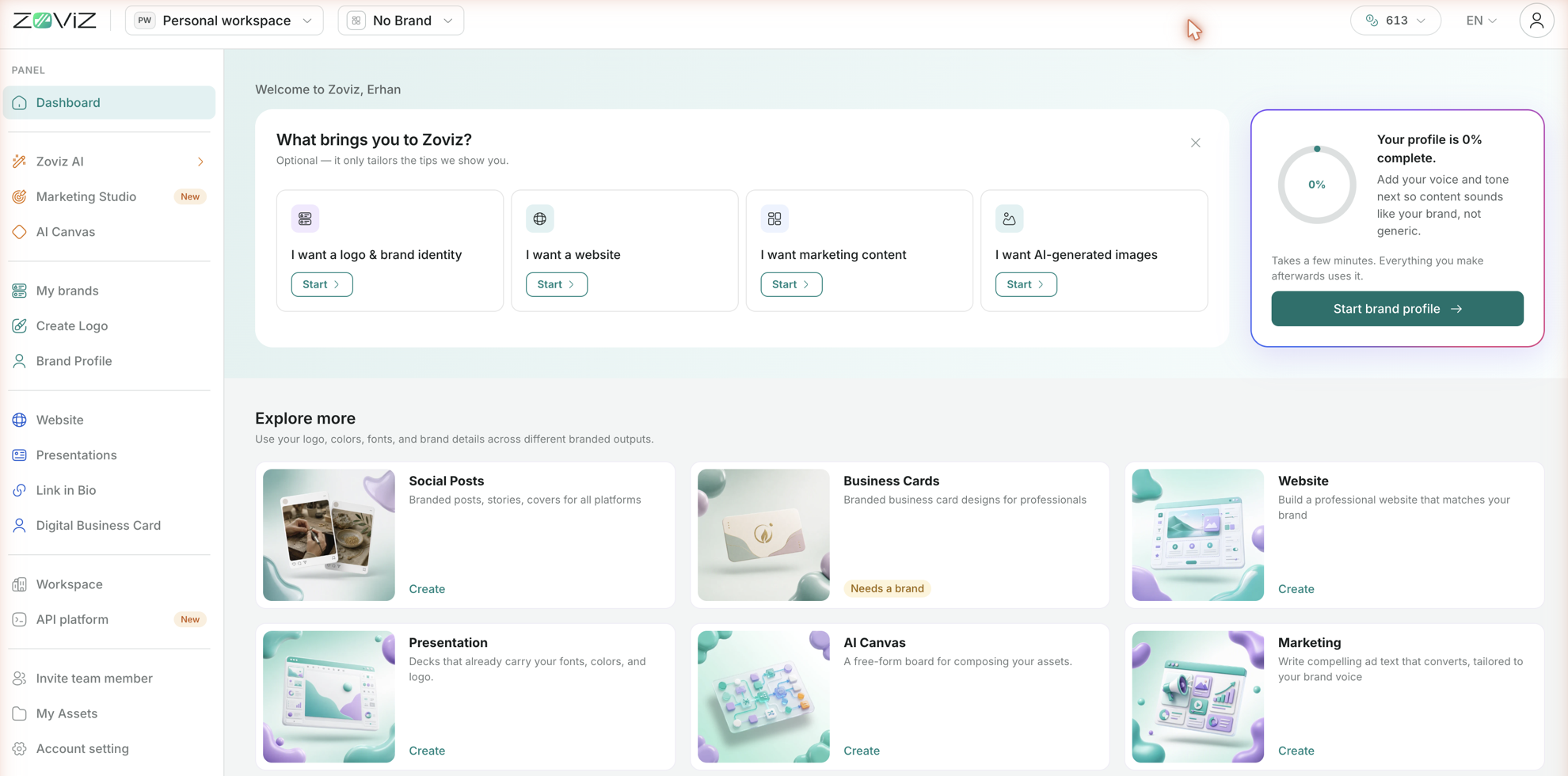
- The hero asks What brings you to Zoviz? with four intent cards — a logo & brand identity, a website, marketing content, AI-generated images — each with Start. Answering is optional; it only tailors the tips you're shown. Close the card with × and the Ask Zoviz box appears instead; Show quick picks reveals suggestions such as An Instagram post for my weekend sale.
- The profile card reads Your profile is N% complete with a suggested next step, and a Start brand profile / Continue brand profile button.
- In Explore more, tools that need a brand — Business Cards, Social Profiles & Covers, YouTube Thumbnails, Letterheads — show Needs a brand instead of Create. Create a brand with Create Logo in the sidebar (or Create New in the brand switcher) and they unlock.
Explore more
Nine branded outputs, each with a Create button: Social Posts, Business Cards, Website, Presentation, AI Canvas, Marketing (ad text in your brand voice), Social Profiles & Covers, YouTube Thumbnails, and Letterheads. Every one starts with your logo, colors, fonts, and brand details already applied.
Your Tools
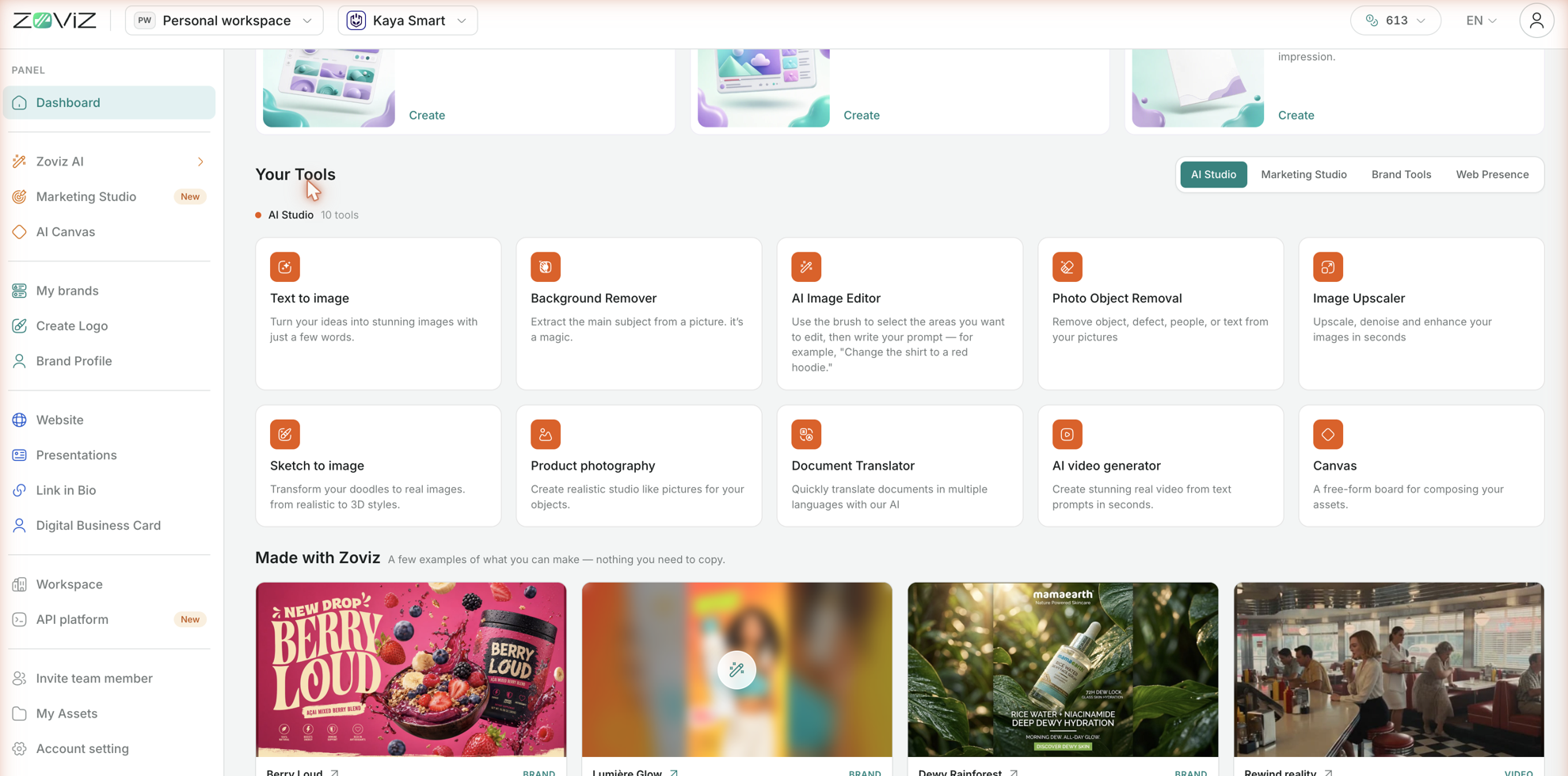
Twenty-one tools grouped in four tabs (Link in Bio and Digital Business Card are in the sidebar instead):
| Tab | Tools |
|---|---|
| AI Studio (10) | Text to image, Background Remover, AI Image Editor, Photo Object Removal, Image Upscaler, Sketch to image, Product photography, Document Translator, AI video generator, Canvas |
| Marketing Studio (6) | AI Copywriter, Social Media Suite, Ad Campaign Suite, Quick Video Creator, Social Video Creator, Pro Video Ads |
| Brand Tools (3) | Create a Logo, Brand Profile, Templates |
| Web Presence (2) | Website builder, Presentations |
Made with Zoviz
A row of example brands and videos at the bottom — inspiration for what the tools can produce. As the page itself says: nothing you need to copy.
Tips & limits
- Check the brand switcher first. Everything you create from this page uses the brand shown in the top bar.
- Fill in the profile. In Zoviz's own words, the more of it you complete, the better it writes for you — and everything you make afterwards uses it.
- "Needs a brand" is not a paywall. It clears as soon as any brand is selected, unlocked or not. Creating a brand is free; downloading in full quality is what needs a license.
- Team workspace? Credits and the brand list are per workspace; switch workspace before switching brand.
Related
- Brand Dashboard tour — one brand's home page
- The Zoviz surfaces explained — Panel, Brand Dashboard, Marketing Studio, public site
- Brand Profile — what the completion ring measures
- My Brands & switching brands
- Workspaces
- Understanding AI Credits
Still stuck? Contact Zoviz support or ask Zoviz.